
How to Fix the Windows 10 Black Screen on Login (Step-by-Step Guide)
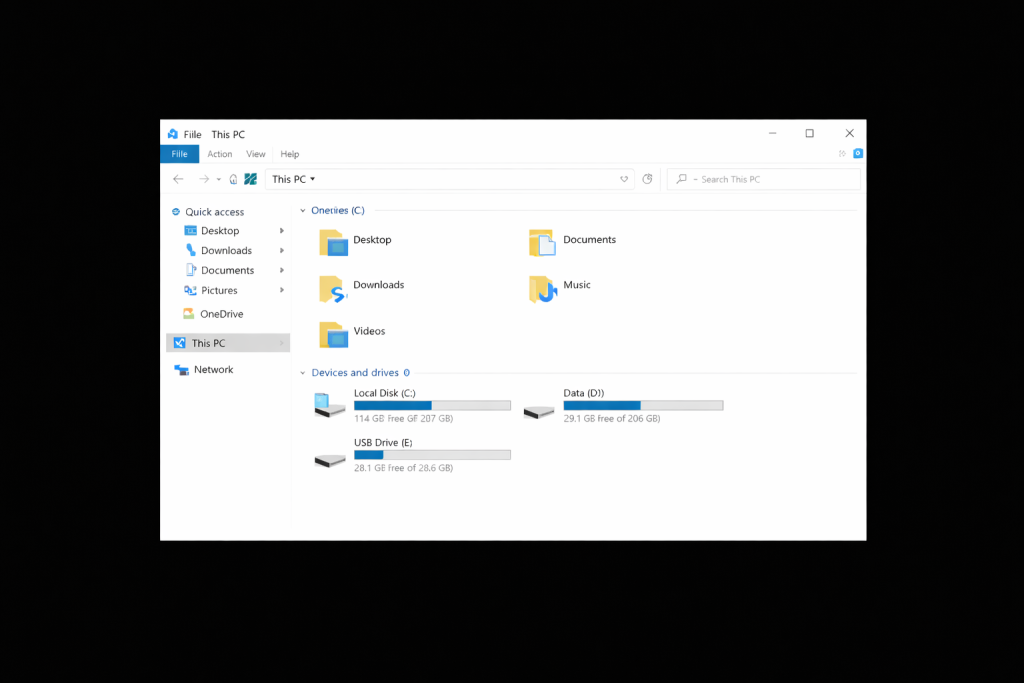
A black screen after logging into Windows 10 can be frustrating — the computer turns on, you enter your password, but instead of the desktop, you’re greeted with a blank screen, no taskbar, no icons, and sometimes only File Explorer opens.
This issue is very common and usually does NOT mean your computer is damaged. In most cases, it’s caused by a graphics driver issue, a failed Windows update, or Windows Explorer not loading properly.
In this guide, we’ll walk through proven solutions that work in most situations.
Common Symptoms
You may be experiencing one or more of the following:
- Black screen after login
- Cursor visible but no desktop
- File Explorer opens automatically
- No taskbar or Start menu
- Screen appears after several minutes
Main Causes of the Windows 10 Black Screen
- Corrupted or outdated graphics driver
- Windows Explorer failing to load
- Incomplete Windows update
- BIOS update or power interruption
- Fast Startup conflicts
- Corrupted user profile
Solution 1: Restart Windows Explorer
This is the quickest and most effective fix.
- Press Ctrl + Alt + Delete
- Open Task Manager
- Look for Windows Explorer
- Right‑click → Restart
If Explorer is missing:
- Click File → Run new task
- Type:
explorer.exe - Press Enter
If the taskbar appears, the problem is solved.
Solution 2: Restart the Graphics Driver
While on the black screen, press:
Windows + Ctrl + Shift + B
The screen may flicker or beep. This reloads the graphics driver.
Solution 3: Boot into Safe Mode
If the screen remains black:
- Force shutdown the PC while booting (do this 3 times)
- Windows Recovery will appear
- Go to:
- Troubleshoot
- Advanced Options
- Startup Settings
- Restart
- Press 4 for Safe Mode
If Safe Mode works, the issue is almost always driver‑related.
Solution 4: Reinstall Display Drivers
In Safe Mode:
- Open Device Manager
- Expand Display adapters
- Right‑click the graphics driver
- Select Uninstall device
- Tick Delete driver software
- Restart the PC
Windows will reinstall a clean driver automatically.
This fix works especially well on laptops using Intel or NVIDIA graphics.
Solution 5: Check the Windows Shell Registry
Sometimes Windows does not load the desktop shell correctly.
- Open Task Manager
- File → Run new task
- Type:
regedit - Navigate to:
HKEY_LOCAL_MACHINE\SOFTWARE\Microsoft\Windows NT\CurrentVersion\Winlogon
Ensure these values are correct:
- Shell = explorer.exe
- Userinit = C:\Windows\System32\userinit.exe,
Incorrect values here will cause a black screen.
Solution 6: Disable Fast Startup
Fast Startup can conflict with graphics drivers.
- Control Panel → Power Options
- Choose what power buttons do
- Change settings currently unavailable
- Untick Fast Startup
- Save and restart
Solution 7: Create a New User Profile
If the problem only affects one account, the user profile may be corrupted.
Create a new user and test login. If the new profile works, move your files to the new account.
After a BIOS Update
If the black screen appeared after updating BIOS firmware, this is normal in some systems.
Recommended steps:
- Reset BIOS to default settings
- Perform a power reset
- Reinstall graphics drivers
- Avoid repeated BIOS updates unless necessary
When to Seek Professional Help
If none of the above solutions work, you may need:
- Windows repair installation
- System restore
- Hardware diagnostics
However, in over 90% of cases, the issue is software‑related and fixable.
Final Thoughts
A Windows 10 black screen after login can look serious, but it’s usually caused by:
- Graphics driver failure
- Explorer not loading
- Update conflicts
With the steps above, most users can restore their desktop without re installing Windows or losing data.
If you experience this problem frequently, keeping drivers updated and avoiding forced shutdowns can prevent it from returning.
Need professional computer repair or Windows troubleshooting? Contact us at Michdubs cyber for fast and safe support.